Tag Archives: JDeveloper

jdevloper not taking the latest changes – what to do?


Sometime when you do the changes and run the application the latest changes are not updated while running the application.

The culprit is the system folder.

{user_home}\system11.1.1.4.37.57.75\o.j2ee\drs\

has the exploded war file which will have the classes that is old. deleting the classes from the exploded directory would definitely fix the issue.

system folder not getting deleted… uffff


I am fed of this Jdeveloper.. Its behaving weird sometimes and will no listen to what I say..

quite many of us would feel the same way and there is only one way to fix this..

Deleting the system folder… 🙂

this post will tell the exact location where you can find the system folder in windows..

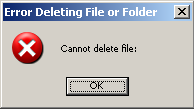
One issue that we face is that how much ever you try to delete sometime you will get

so what’s the reason:

This issue is because of the limitation in windows machine that the maximum length of the folder hierarchy is 255 to 260.. not sure about that but its less than 260 characters.. [path+filename]

and to identify in our system folder.. the following path violates the above max limits.

C:\Documents and Settings\{user_id}\Application Data\JDeveloper\system11.1.1.4.37.59.23\DefaultDomain\servers\DefaultServer\tmp\_WL_user\oracle.webcenter.framework.view

(all folders [3 mostly] that starts with oracle.webcenter.framework under _WL_user)

workaround:

move all the three folders that starts with oracle.webcenter.framework to much higher level .. say.. outside the actual system folder itelf.. [C:\Documents and Settings\{user_id}\Application Data\JDeveloper\].. and delete it..

now your system folder will get deleted easily.. 🙂

Sherman release notes


http://jdevadf.oracle.com/adf-richclient-demo/docs/release.html

jdeveloper extensions link


you can download all the extensions related to jdeveloper from this location

http://www.oracle.com/technetwork/developer-tools/jdev/index-099997.html

jdeveloper 11g release 2 is out


jdeveloper 11g release 2 is out

http://blogs.oracle.com/Didier/entry/jdeveloper_adf_11g_release_2

Creating a simple extension for jdeveloper


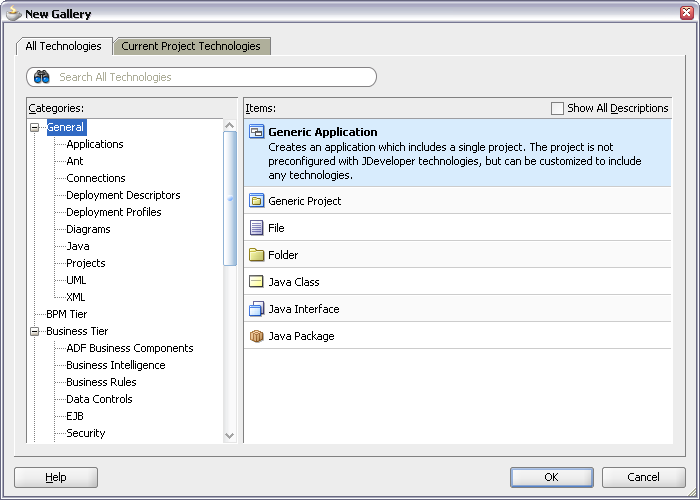
First you have to create a generic Application by selecting from File -> New -> General -> Generic Application

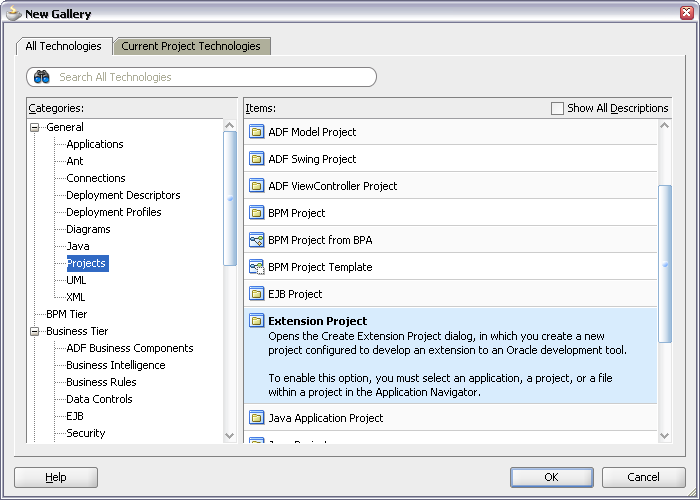
Name the application and create a new Extension project for the application by selecting File -> New -> Projects -> Extension Project

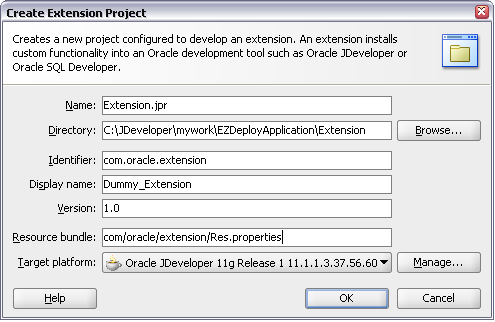
The Create Extension Project wizard will help you specify the project details

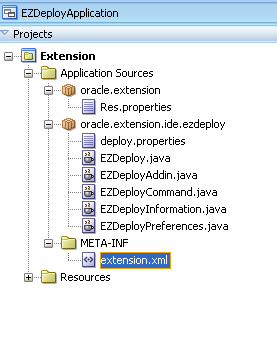
The new Extension project will have the structure like

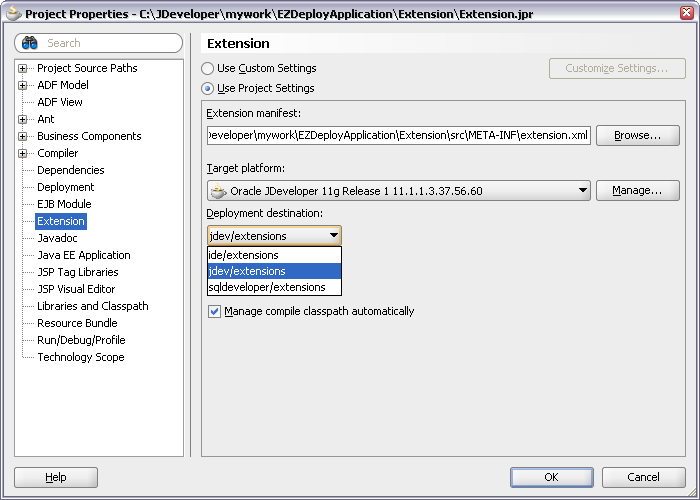
The properties of the project is to be configured as shown in the figure

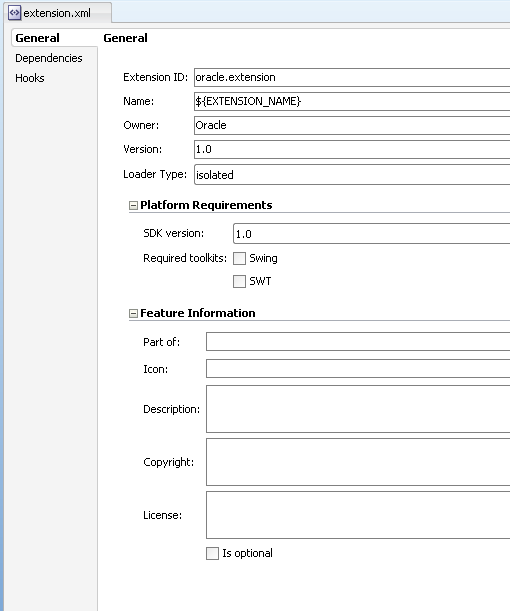
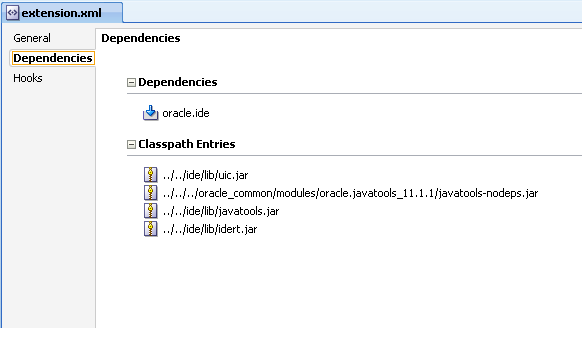
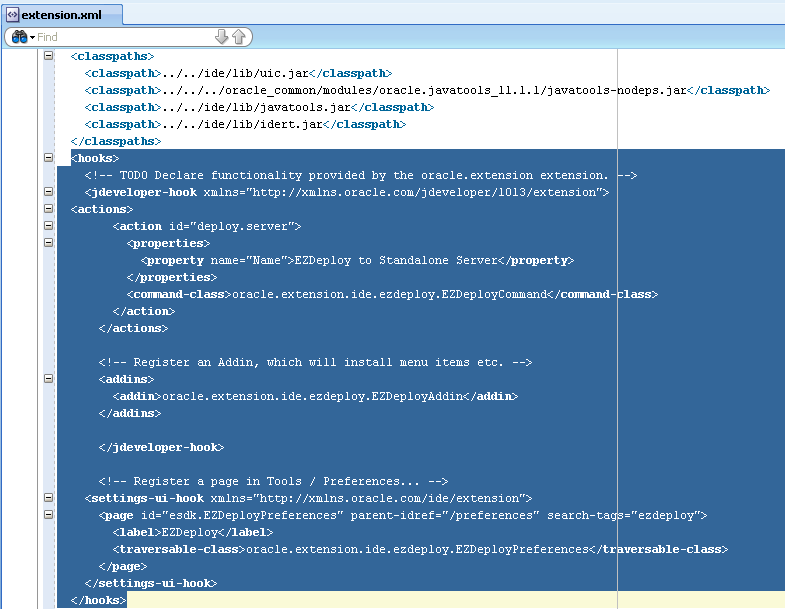
Open the extension.xml from META-INF folder. In the overview tab you will find General, Dependencies and Hooks panels

General – Will have all general information like name, version, owner etc

source:

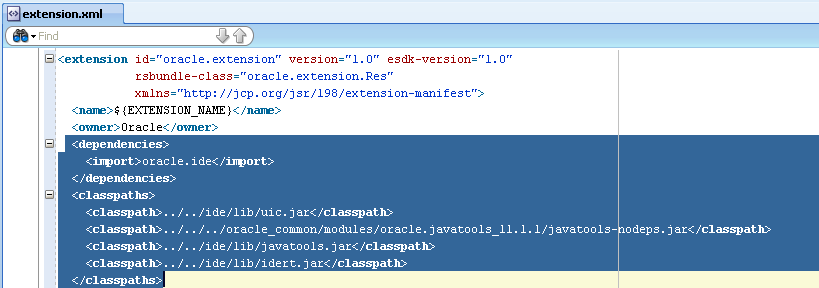
Dependencies – Will have references to the extension dependencies. The classpath reference is also included

source:

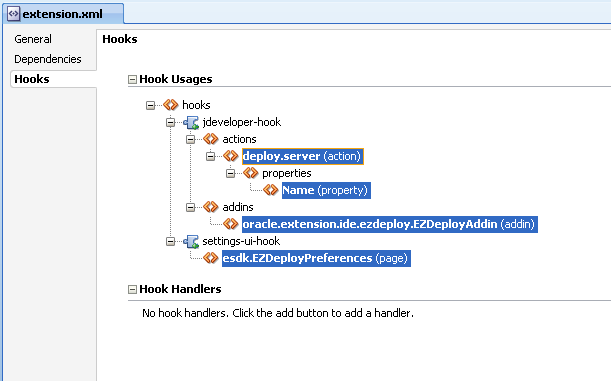
Hooks – Will have the points at which the extension will be added to the Jdeveloper ide.

Each individual hook allows an extension to provide specific binding information to plug into different areas of an IDE. Here are the main areas where extensions plug-in:

  1. Menus and commands through the menu-hook,
  2. Document model through the document-hook,
  3. IDE events through the ide-listener-hook,
  4. Custom editors through the editor-hook,
  5. IDE preferences and project settings through the property-hook,
  6. Log pages through the log-hook
  7. New wizards through the wizard-hook, and
  8. The compiler through the build-system-hook.
  9. The feature-hook allows extensions to appear in an IDE’s extension management UI as features that can be enabled/disabled.
  10. The custom-hook and hook-handlers allows extensions to define their own extension points.

source:

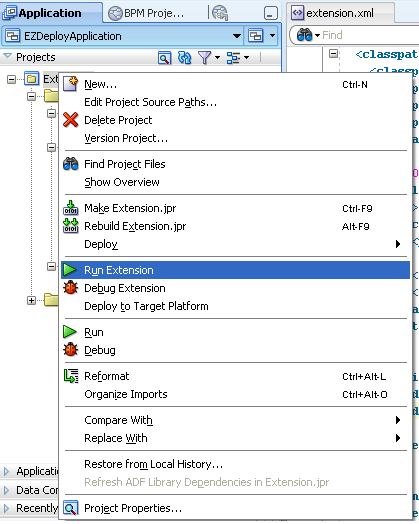
Running the extension is to right-click the project and say Run Extension

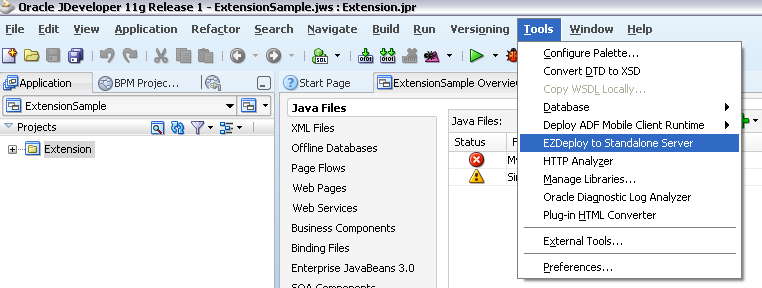
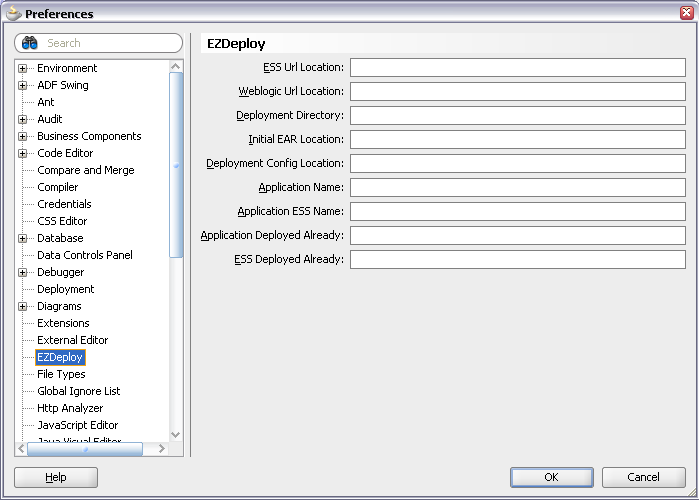
The deployed extension will be seen from Tools menu and preferences

The sample project can be downloaded from here

For details on the tags in the extension.xml file, see the file JDEV_HOME/jdev/doc/extension/ide-extension-packaging.html

Each individual hook allows an extension to provide specific binding information to plug into different areas of an IDE. Here are the main areas where extensions plug-in:

  1. Menus and commands through the menu-hook,
  2. Document model through the document-hook,
  3. IDE events through the ide-listener-hook,
  4. Custom editors through the editor-hook,
  5. IDE preferences and project settings through the property-hook,
  6. Log pages through the log-hook
  7. New wizards through the wizard-hook, and
  8. The compiler through the build-system-hook.
  9. The feature-hook allows extensions to appear in an IDE’s extension management UI as features that can be enabled/disabled.
  10. The custom-hook and hook-handlers allows extensions to define their own extension points.

Bored of the same old Jdeveloper splash


If you get bored with the same old splash screen for jdeveloper, then go straightaway and modify the file from

${JDEV_HOME}/jdev/bin/splash.gif

Do not change the dimension. Look at mine  🙂

Keep playing…

Jdeveloper system folder in windows


I was wondering where the system folder in windows resides. searched all the place and stopped until i got this

C:\Documents and Settings\{user_id}\Application Data\JDeveloper


Soa Suite 11gR1 (11.1.1.3.0) installation guide for Windows


The complete Soa suite installation guide is uploaded here

Complete fusion middleware documents are available at

http://download.oracle.com/docs/cd/E14571_01/index.htm

System requirements and specifications

Checklist

  • Processor
  • Operating System
  • Disk Space
  • Physical Memory
  • Browser
  • JDK

Complete requirments are available at

http://www.oracle.com/technetwork/middleware/ias/downloads/fusion-requirements-100147.html

Download the files

All software can be downloaded from the Fusion Middleware 11gR1 PS2 download page (also known as the FMW download page)

Installation procedure [RCU version 11.1.1.3]

  1. Oracle DB (OracleXE Univ)
  2. Weblogic Server 10.3
  3. Repository Creation Utility for DB schema 11.1.1.3
  4. Soa Suite 11.1.1.2
  5. Soa Suite patchset installer for 11.1.1.3
  6. Jdeveloper 11.1.1.3
  7. Soa Extension (Oracle SOA Composite Editor)
  8. Weblogic domain creation

If you face any problem in creating the DB schema using RCU 11.1.1.3 then please download the RCU 11.1.1.2 and follow this installation process. Also you will face some issues in creating the Weblogic db schema for soa_infra during weblogic domain creation

  1. Oracle DB (OracleXE Univ)
  2. Weblogic Server 10.3
  3. Repository Creation Utility for DB schema 11.1.1.2
  4. Soa Suite 11.1.1.2
  5. Jdeveloper 11.1.1.3
  6. Soa Extension (Oracle SOA Composite Editor)
  7. Weblogic domain creation (domain creation will fail for soa_infra stating a 11.1.1.3 version problem if you have used RCU 11.1.1.3)
  1. Soa Suite patchset installer for 11.1.1.3

Database

OraceXEUniv.exe http://download.oracle.com/otn/nt/oracle10g/xe/10201/OracleXEUniv.exe

Screenshots

WebLogic Server

wls1033_oepe111150_win32.exe

http://download.oracle.com/otn/nt/middleware/11g/wls1033_oepe111150_win32.exe

Screenshots

Repository Creation Utility

ofm_rcu_win32_11.1.1.3.3_disk1_1of1.zip

http://download.oracle.com/otn/nt/middleware/11g/ofm_rcu_win32_11.1.1.3.3_disk1_1of1.zip

Note:

If repository tool 11.1.1.3.3 is creating some kind of problem while creating DB schema then please use RCU of 11.1.1.2.1 [if you are using 11.1.1.2.1 then please refer to section X for the installation order]

ofm_rcu_win32_11.1.1.2.1_disk1_1of1.zip

http://download.oracle.com/otn/nt/middleware/11g/ofm_rcu_win32_11.1.1.2.1_disk1_1of1.zip

Screenshots

SOA Suite & Patch

You have to have Soa Suite 11.1.1.2.0 installed in your system before installing the 11.1.1.3.0 patchset installer

ofm_soa_generic_11.1.1.2.0_disk1_1of1.zip

http://download.oracle.com/otn/nt/middleware/11g/ofm_soa_generic_11.1.1.2.0_disk1_1of1.zip

ofm_soa_generic_11.1.1.3.0_disk1_1of1.zip(includes BPM)

http://download.oracle.com/otn/nt/middleware/11g/ofm_soa_generic_11.1.1.3.0_disk1_1of1.zip

Screenshots

JDeveloper

jdevstudio11113install.exe

http://download.oracle.com/otn/java/jdeveloper/11.1.1.3.0/jdevstudio11113install.exe

SOA Extension for JDeveloper

You can install the extensions directly from inside JDeveloper through the “Help -> Check for Updates” menu option which is the recommended way install extensions. If you can’t connect to the Internet from your JDeveloper, you can directly download JDeveloper extensions from this page, and point the Check for Updates wizard to the local file you have downloaded.

http://download.oracle.com/otn/java/jdeveloper/11.1.1.3.0/extensions/soa-jdev-extension.zip

Note: for other extensions please refer

http://www.oracle.com/ocom/groups/public/@otn/documents/webcontent/156082.xml#oracle.sca.modeler

Setting up the database

Run the following commands to increase the process limits (Only for Oracle XE)

sqlplus sys/welcome1@XE as sysdba
SQL> show parameter session
SQL> show parameter processes
SQL> alter system reset sessions scope=spfile sid='*';
SQL> alter system set processes=200 scope=spfile;
SQL> shutdown immediate
SQL> startup
SQL> show parameter session
SQL> show parameter processes

Weblogic Domain Creation

refer this link

Server URLS

The link for the Weblogic console

http://localhost:7001/console (login with weblogic/welcome1)

The link for the EM console

http://localhost:7001/em (login with weblogic/welcome1)

The link for the SOA worklist app

http://localhost:8001/integration/worklistapp

The link for B2B

http://localhost:8001/b2b

The link for BAM (must use IE browser)

http://localhost:9001/OracleBAM

Starting the servers

Go to the domain directory and type startWebLogic.cmd

D:\Oracle\Middleware\user_projects\domains\soa_infra_domain> startWebLogic.cmd

On the same command line press ctrl+c or goto the bin directory of the domain folder and type stopWebLogic.cmd

D:\Oracle\Middleware\user_projects\domains\soa_infra_domai\bin> stopWebLogic.cmd

D:\Oracle\Middleware\user_projects\domains\soa_infra_domain\bin> stopManagedWebLogic.cmd so_server1
How to change the default text title of Detached table/treetable


have trindad-skins.xml in your web-inf folder and have the following tag

<skin>
 <id>dummy.desktop</id> // you are overriding the style
 <family>dummy</family>
 <extends>fusion.desktop</extends> // this should be from the trinidad-config.cml
 <render-kit-id>org.apache.myfaces.trinidad.desktop</render-kit-id>
 <style-sheet-name>skins/dummy/dummy.css</style-sheet-name>
 <bundle-name>oracle.view.resource.rich.SkinBundle</bundle-name> // your skin bundle to override the name
 </skin>

here dummy.css is used to override any visual property of the faces component defined in fusion theme
to override the label, use in the SkinBundle like (The java bundle file should be registered as a managed bean in adfc-config.xml)

package oracle.view.resource.rich;
 import java.util.ListResourceBundle;
public class SkinBundle
 extends ListResourceBundle
 {
 @Override
 public Object[] getContents()
 {
 return _CONTENTS;
 }

static private final Object[] _CONTENTS =
 {
 { "af_panelCollection.LABEL_DETACH_TABLE_DLG", "Any name for the Detachable Table" },
 { "af_panelCollection.LABEL_DETACH_TREE_TABLE_DLG", "Any name for the Detachable Tree Table" }
 };
 }