Tag Archives: ADF

Show dialog when a page is fully loaded


1. Add popup and outputText component at the end of your page (make sure popup is before outputText in the page structure)

2. Create bean binding for popup as well as outputText.

3. In the getter of outputText, launch popup programatically.

4. Set visible=false for outputText

How to change the default text title of Detached table/treetable


have trindad-skins.xml in your web-inf folder and have the following tag

<skin>
 <id>dummy.desktop</id> // you are overriding the style
 <family>dummy</family>
 <extends>fusion.desktop</extends> // this should be from the trinidad-config.cml
 <render-kit-id>org.apache.myfaces.trinidad.desktop</render-kit-id>
 <style-sheet-name>skins/dummy/dummy.css</style-sheet-name>
 <bundle-name>oracle.view.resource.rich.SkinBundle</bundle-name> // your skin bundle to override the name
 </skin>

here dummy.css is used to override any visual property of the faces component defined in fusion theme
to override the label, use in the SkinBundle like (The java bundle file should be registered as a managed bean in adfc-config.xml)

package oracle.view.resource.rich;
 import java.util.ListResourceBundle;
public class SkinBundle
 extends ListResourceBundle
 {
 @Override
 public Object[] getContents()
 {
 return _CONTENTS;
 }

static private final Object[] _CONTENTS =
 {
 { "af_panelCollection.LABEL_DETACH_TABLE_DLG", "Any name for the Detachable Table" },
 { "af_panelCollection.LABEL_DETACH_TREE_TABLE_DLG", "Any name for the Detachable Tree Table" }
 };
 }

Easiest way to get the current binding from the bean


use the following snippet to get the current binding

BindingContainer bindings =  BindingContext.getCurrent().getCurrentBindingsEntry();
 AttributeBinding at = (AttributeBinding)bindings.getControlBinding("Period");
 at.getInputValue();

The above mentioned code is useful only in case of retrieving values of any attribute binding in the page definition file. To retrieve specific information use it like

//For search binding use it like
FacesCtrlSearchBinding fc =
(FacesCtrlSearchBinding)bindings.findExecutableBinding("PeriodQuery");
or
FacesCtrlSearchBinding fc =
(FacesCtrlSearchBinding)bindings.get("PeriodQuery");

//For LOV binding use it like
FacesCtrlLOVBinding fc = (FacesCtrlLOVBinding)bindings.get("PeriodLOV");

some of the useful methods that can also be used for retrieving binding is

private BindingContainer getBindings() {
BindingContainer bindings =
(BindingContainer)fc.getApplication().evaluateExpressionGet(fc, "#{bindings}",
 BindingContainer.class);
return (bindings == null) ? null : bindings;
 }

to retrieve the bindings  or executable you use it like

//to retireve the tree/table bindings
FacesCtrlHierBinding fc = (FacesCtrlHierBinding)bindings.get("Period");

//to retireve the tree/table iterator
DCIteratorBinding dc = (DCIteratorBinding)bindings.get("PeriodIterator");

Javascript code to fire the event


The following function can be called using the af:clientListener on any event

function showMenu(event){
 var adfRichMenu = event.getSource();
 adfRichMenu.getPeer().show(null,true);

}

AutoHeightRows along with detailStamp


When a table has AutoHeightRows set to a value greater than 0 (eg 10),

clicking on the expand icon (+) in the row header does not display the

detailStamp area of the table

We have to set the AutoHeightRows to a value greater than 0 because if we

leave it as -1, a blank white area is displayed in the table

Do you know the fix for this?

simple fix was to add this attribute to the table:

rowDisclosureListener=#{FixAutoHeightRows.pprTable}

Here

FixAutoHeightRows is the bean bounded to the page

pprTable is the table binding or the binding for the component that is surrounding the table

How to invoke method before the page loads in ADF?


Here is the tutorial on how to invoke a method before the page loads in ADF. Let’s assume that you have a method in the application module, which will have to be invoked before the page load. For this, you have to expose this method as a client method using the client interface option for the application module. Click the edit icon and you will see your method listed in the Available list. Shuttle the method to Selected list and press ‘ok’. After shuttling the method you will see that the method gets added to the client interface. The method that we added will be exposed to the view layer through the application module data control. You have to refresh the data control to see your method. Now to get the binding for our method we have to add a method action binding to the page definition file and select the method that is exposed in the data control. We select our method from the Operation and click ‘ok’. After that we have to create an invokeAction in the Executables section to invoke the method action. We select our method from the list for the Binds and select Refresh as ‘always’.

now the method action binding and the invoke action is added to the page definition file.By default the invokeAction binding is added as a last executable. But we want to invoke the action on page load, so we move the invoke action to the first place to execute initially before any other executable. This can be done by dragging the invokeAction to the first place. Now whenever you run your page you will see the control goes to the method automatically.

download the sample project from this location

Explicit validation for af:input components


Here is a simple way to get around with the red box validation that used to appear on af:input Components upon some validation

<af:inputText value="#{row.bindings.<attributeValue>.inputValue}"
 label="#{bindings.<tableBinding>.hints.<attributeValue>.label}"
 required="#{bindings.<tableBinding>.hints.<attributeValue>.mandatory}"
 columns="#{bindings.<tableBinding>.hints.<attributeValue>.displayWidth}"
 maximumLength="#{bindings.<tableBinding>.hints.<attributeValue>.precision}"
 shortDesc="#{bindings.<tableBinding>.hints.<attributeValue>.tooltip}"
 id="it3" validate="#{MyBean.validate}">

and in the MyBean class we have it like

public void validate(FacesContext facesContext, UIComponent uiComponent, Object value) {
        FacesMessage message = new FacesMessage();
        message.setDetail("Some Errror message");
        message.setSummary("Value Error message");
        message.setSeverity(FacesMessage.SEVERITY_ERROR);
        throw new ValidatorException(message);
}

what are we doing here..

  • Getting the handle to the FacesMessage by explicitly instantiating it
  • Set the Detail,Summary and Severity for the message
  • Throwing the message as a ValidatorException

ADF Library


How normal jar library is different from ADF Library?

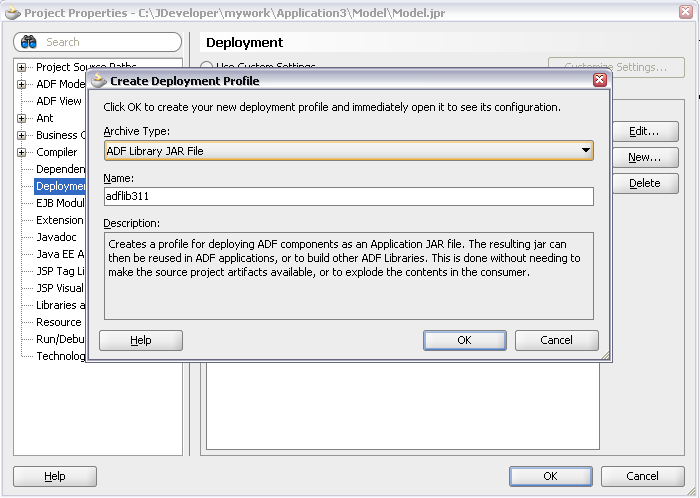
Whenever you create a deployment profile for the model project in ADF you wil select the ADF Library type rather an ordinary library type (java jar type)

Both act as a library archive supporting jar and zip files

What is the difference then?

  • ADF library differ in a way that it behaves. It has the uniqueness of automatically pulling in the dependent jar files that is referred by any of the files and written in to the manifest files. The dependent libraries that are needed at runtime is pulled n by Jdeveloper as secondary imports.
  • The library exposes the meta data files likes task flows allowing the user to drag and drop in their files as dependent files which normal jar will not expose and support. The dropped taskflow will be added as a region in the page.